

On this page6 sections
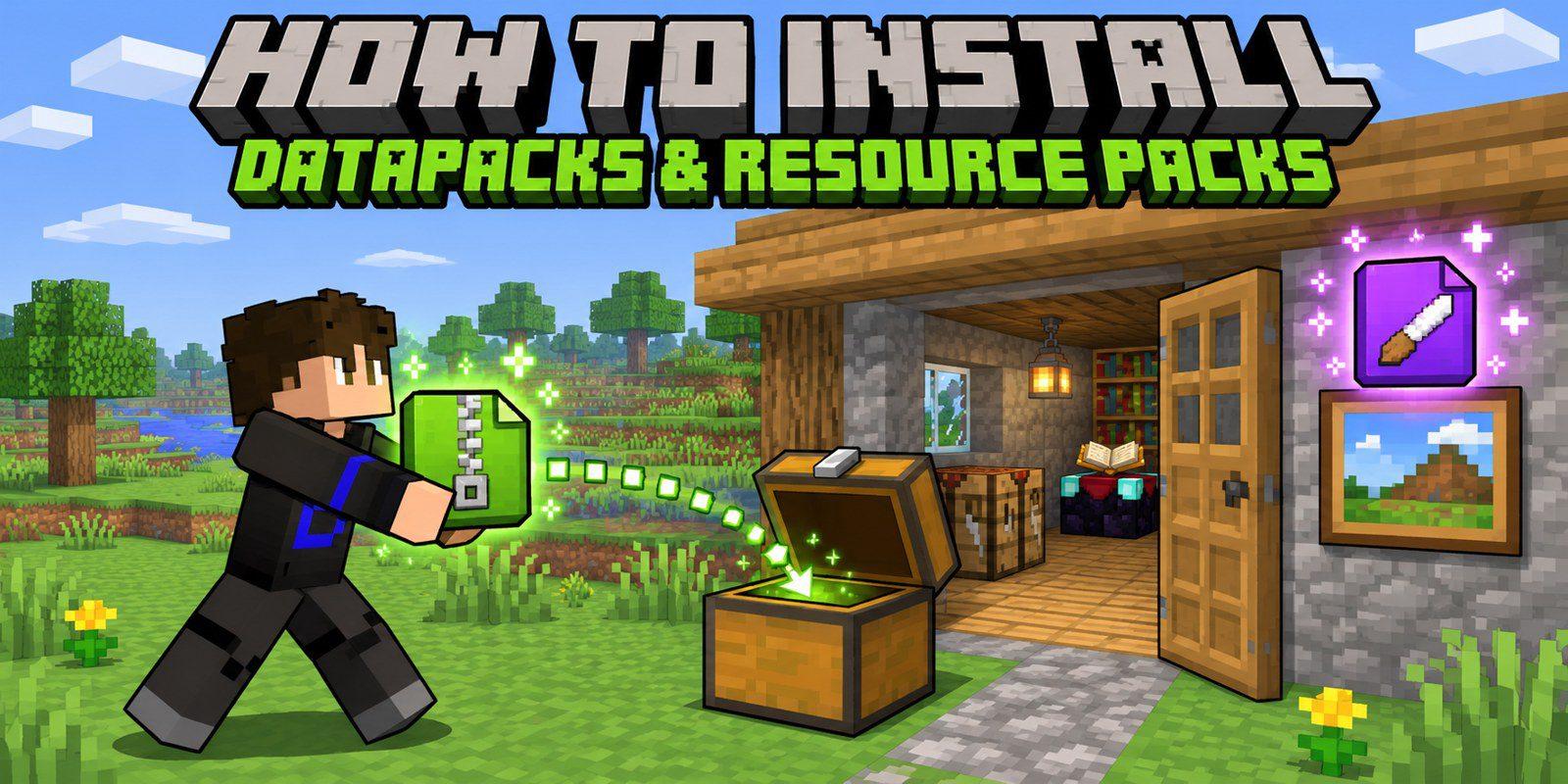
Installing a datapack takes about a minute: put a ZIP file in the right folder and reload the world. This guide covers every Minecraft Java version from 1.13 to today, singleplayer, servers and Realms, plus resource packs and the exact steps for my packs.
Quick version
- Download the file for your Minecraft version. Don't extract it.
- Datapack: world → Edit → Open World Folder →
datapacks, paste the ZIP. - Resource pack (if the pack has one): Options → Resource Packs → Open Pack Folder, paste the ZIP, move it to Selected.
- Join the world and run
/reload.
Not sure what a datapack is? Read What is a Minecraft datapack? first.
Before you start
Check your Minecraft version
The version is in the bottom-left corner of the title screen, and in the launcher next to Play. Datapacks only work on the versions they were made for, so every download on this site says which range it covers, for example 1.21.5 – 26.3. Versions after 1.21.11 are numbered by year: 26.1, 26.2 and so on.
Keep the ZIP zipped
Minecraft reads datapacks and resource packs straight from the .zip file. An extracted folder only works if pack.mcmeta sits directly inside it, and extracting often adds an extra folder level, so just keep the ZIP.
Safari on Mac unzips downloads
If you got a folder instead of a ZIP, Safari's Open "safe" files after downloading option extracted it. Turn that off in Safari → Settings → General and download again.
Find your Minecraft folder
The easiest way is the Open World Folder and Open Pack Folder buttons inside the game: they always open the right place, even with the CurseForge, Modrinth or Prism launchers. If you need the path:
| System | .minecraft folder |
|---|---|
| Windows | %appdata%\.minecraft (paste it in the File Explorer address bar) |
| macOS | ~/Library/Application Support/minecraft |
| Linux | ~/.minecraft |
Worlds live in .minecraft/saves/<world name>, and each world has its own datapacks folder.
Install a datapack in singleplayer
Existing world (every version from 1.13)
- On the title screen click Singleplayer, select your world (don't open it) and click Edit.
- Click Open World Folder and open the
datapacksfolder. - Paste the datapack ZIP into it.
- Play the world and run
/reload. Datapacks are also loaded every time you join the world.
New world
| Your version | Where the button is |
|---|---|
| 1.19.4 and newer | Create New World → More tab → Data Packs |
| 1.16 – 1.19.3 | Create New World → Data Packs |
| 1.13 – 1.15 | No button yet: create the world, then use the existing-world steps above |
- Click Data Packs, then drag the ZIP onto the window (or click Open Pack Folder and paste it there). Confirm the copy.
- Make sure the pack is in the Selected column on the right. If it's on the left, click its icon to move it.
- Click Done and create the world.
Check that it's on
Run /datapack list. Your pack shows up as file/<name>.zip. If it's listed as available but not enabled, turn it on with:
/datapack enable "file/saitama-datapack-1.21.5-26.3.zip"
Press Tab while typing the name to fill it in.
Cheats off?
/reload and /datapack need cheats. Without them, just leave and rejoin the world: that loads new datapacks too. For one session you can also open the world to LAN with Allow Cheats: ON.
Install a resource pack
Resource packs are installed once for your whole game, not per world.
- On the title screen click Options… → Resource Packs….
- Click Open Pack Folder and paste the ZIP into it, or drag the ZIP onto the Resource Packs window.
- Hover over the pack in the Available list and click the arrow to move it to Selected.
- Click Done and wait for the game to reload its textures.
Packs higher in the Selected list win when two packs change the same thing, so put a datapack's resource pack above texture packs if something looks wrong.
"Made for an older (or newer) version of Minecraft"
Minecraft shows this when a pack's format number doesn't match your game. It asks you to confirm and lets you turn the pack on anyway. Whether it works depends on the pack: some only miss a version bump, others really break. Each of my posts says when the warning is safe to ignore.
Install on a server
Datapack
- Stop the server.
- Upload the ZIP to
world/datapacks/in the server folder. (worldis whateverlevel-namesays inserver.properties.) - Start the server. On a running server you can run
/reloadfrom the console instead.
This works the same on vanilla, Paper, Spigot, Fabric and Forge servers. On a server host, use its file manager or FTP to reach the world folder. Players don't install the datapack; it only lives on the server.
Resource pack
The server can send the resource pack to every player when they join:
- Upload the ZIP somewhere with a direct download link: the link has to download the ZIP itself, not open a page. Google Drive and MediaFire share pages don't work.
- Get the file's SHA-1 hash, so players' games can check the download:
- Windows:
certutil -hashfile pack.zip SHA1 - macOS:
shasum -a 1 pack.zip - Linux:
sha1sum pack.zip
- Windows:
- Add the link and hash to
server.propertiesand restart:resource-pack=https://example.com/saitama-resourcepack-1.21.5-26.3.zip resource-pack-sha1=paste-the-40-character-hash-here require-resource-pack=true
require-resource-pack=true (1.17+) kicks players who decline the pack. Leave it out to make the pack optional.
Realms
Realms can't take files directly. Install the datapack in a singleplayer world, then upload that world to your Realm from the Realm's settings. Realms can't send your own resource pack, so every player turns it on in their own game.
Installing my datapacks
Every pack on this site follows the same steps.
1. Check what the pack needs
Open the pack's post and look at its Requirements table. Right now:
| Pack | What to install | Minecraft |
|---|---|---|
| Saitama | Datapack and resource pack | 1.18 – 26.3 |
| ThrowAxe | Datapack only | 1.21.11 – 26.4 |
| Sword Blocking | Datapack only | 1.21.5 – 26.4 |
| Double Jump & Ninja Moves | Datapack only | 1.18 – 26.4 |
The old legacy versions (in Previous builds on each download page) work differently and some need a resource pack or OptiFine; their notes say so.
2. Download the right files
- Click Download on the post.
- If the pack has several builds, pick your Minecraft version at the top.
- Tick the human check and wait for the short countdown.
- Click Download next to every file you need. Each link works once and expires after a few minutes; if one stops working, press Get new download links.
3. Install and check
Put the datapack in your world's datapacks folder and, for Saitama, turn on the resource pack, as shown above. Then join the world and run /reload. Each pack says hello in chat when it loads, with clickable buttons. On 1.21.6 and newer you'll also find the pack's settings in the pause menu (Esc).
Updating to a new version
Delete the old ZIP, put the new one in the same place and run /reload. Never keep two versions of the same pack in one world: they fight over the same functions. The Changelog tab on each post lists what changed.
Removing a pack
- Use the pack's Uninstall button in its settings or chat message. It cleans up the pack's scores and items.
- Delete the ZIP from
datapacks(and the resource pack, if there is one). - Run
/reloador rejoin the world.
Troubleshooting
The pack isn't in /datapack list
The file is in the wrong place or packed wrong. It must be in the datapacks folder of the world you're playing, not in .minecraft or another world. Open the ZIP: pack.mcmeta has to be at the top, not inside another folder.
It says the pack is incompatible or made for a newer version
You downloaded the build for a different Minecraft range. Check your version and download the matching file.
/reload says Unknown or incomplete command
Cheats are off. Leave and rejoin the world instead, or open to LAN with Allow Cheats on.
Items show the wrong texture or there's no sound
The resource pack is missing, not selected, or for a different version. Check that it's in the Selected list of Options → Resource Packs.
It works in singleplayer but not on my server
The datapack has to be in the server's world folder, not on your computer. Restart the server after adding it, and check the console for errors.
Can I install datapacks on Bedrock or mobile?
No, datapacks are Java Edition only.
Still stuck? Leave a comment below with your Minecraft version and what you see, and I'll help you out.
Comments
Loading comments…

Author
TheDemonTuan
I build vanilla Minecraft datapacks, then show them off on YouTube.
Related articles


Bedrock · Add-on, Java · DatapackMC 1.18 – 26.3
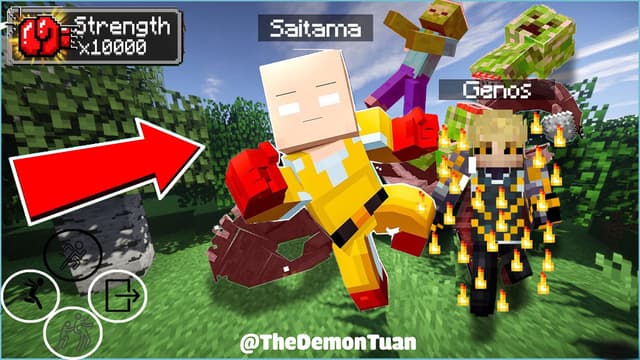
Saitama One Punch Man Datapack & Add-on for Minecraft
59 views61 downloads4 comments

Bedrock · Add-on, Java · DatapackMC 1.21.11 – 26.4
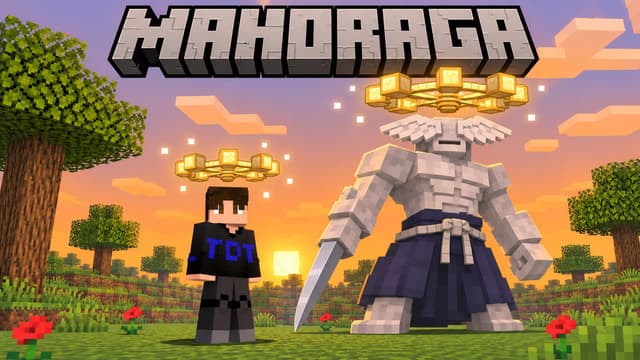
Mahoraga Wheel of Adaptation: Minecraft Datapack & Add-on
47 views25 downloads


Java · Datapack, Bedrock · Add-onMC 1.21.11 – 26.4
Gojo: Infinity (Jujutsu Kaisen) – Java Datapack and Bedrock Add-on
1 view